

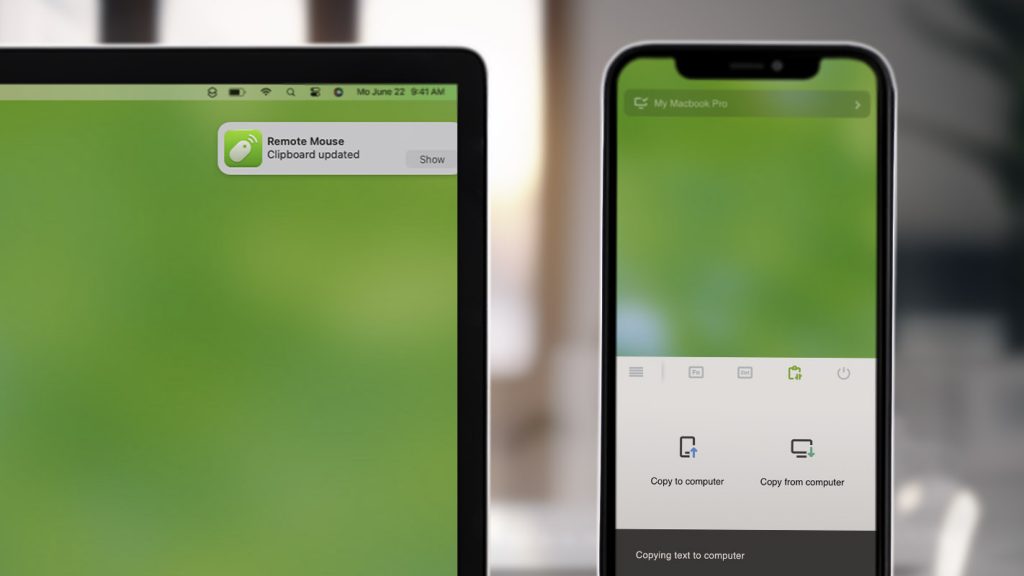
Apple introduced Universal Clipboard in 2016 (as part of iOS 10 and macOS Sierra), making it possible to copy and paste content seamlessly between Apple devices like Mac, iPhone, and iPad.
Now, Remote Mouse brings this experience even further.
With the new Cross-Device Copy & Paste feature (sometimes called Clipboard Sync), you can copy and paste text or images effortlessly between your computer and your phone. And unlike system-level solutions, Remote Mouse breaks platform boundaries:
- Copy from Android and paste to Mac
- Copy from Windows PC and paste to iPhone or iPad
- Copy from phone to computer, or the other way around
No ecosystem lock-in. Just copy and paste.
How to Use Cross-Device Copy & Paste
Copy from Computer → Paste on Phone
Copy on your computer:
- Press Ctrl + C (Windows) or Command + C (Mac) to copy text or images
Paste on your phone:
- Open Remote Mouse app and go to the Copy & Paste panel
- Tap “Copy from computer”
- Switch to any app and paste as usual
Copy from Phone → Paste on Computer
Copy on your phone:
- Copy text or images normally
- Open Remote Mouse app → Copy & Paste panel
- Tap “Copy to computer”
Note for Android users:
Due to Android system limitations, text and images must be sent separately.
In the Copy & Paste panel, you’ll see two different buttons: Copy Text & Copy Image.
Please choose the one that matches what you copied.
Paste on your computer:
- Press Ctrl + V (Windows) or Command + V (Mac) to paste
To use Cross-Device Copy & Paste, make sure both the Remote Mouse mobile app and the desktop helper are updated to the latest version.