New Year, New Remote Mouse Desktop Helper 🎉

January 1, 2026 in What's New

Hello there,

How are you welcoming the New Year on your side of the world?

Are you counting down in the streets 🎆, hiking somewhere quiet 🥾, sharing a meal with friends 🍽️, or simply staying home with family?

Whether today feels special or just like an ordinary day, I hope this first day of the year finds you relaxed and in good spirits.

A Major Update to Remote Mouse Desktop Helper

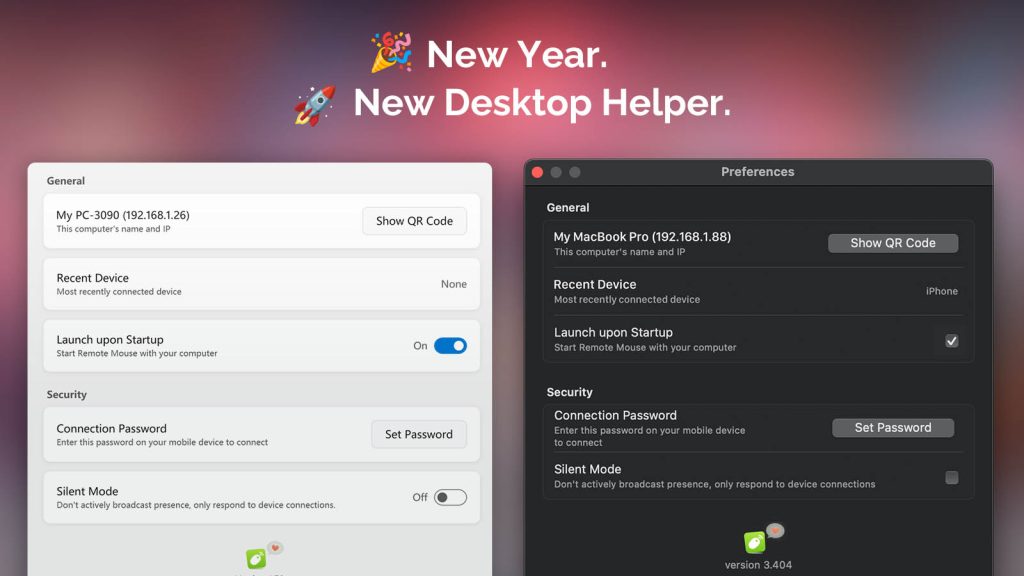
As the year came to a close, Remote Mouse Desktop Helper received a major update for both Windows and macOS:

  • 🧩 A cleaner, more compact UI that makes options easier to find
  • 🎨 Visual refinements that better match the latest Windows 11 and macOS design trends
  • 🌍 Added multi-language support (with more languages coming soon)
  • ⌨️ Bug fixes that improve keyboard input and overall stability
  • 🔐 A new encryption mechanism for better security and reliability

Moving Forward, Together

The world is changing at an incredible pace, and Remote Mouse needs to evolve faster and smarter to keep supporting your daily workflow.

Thank you for being here. I hope we continue this journey together in the new year.

👉 Download the latest Remote Mouse Desktop Helper here.

Yao, Developer of Remote Mouse
Madrid · January 1, 2026

Remote Mouse and macOS Permissions: Why They’re Needed and How to Enable Them

December 9, 2025 in Troubleshooting

1. Why macOS Keeps Asking for Permissions

Starting with macOS Mojave, Apple began taking a very cautious approach to apps that can control your computer. Remote-control tools like Remote Mouse that can move the cursor, type, or trigger system actions now require explicit user permission to function.

2. What Remote Mouse Actually Needs and Why

Accessibility

Accessibility allows apps to perform input-related actions on your Mac.

Remote Mouse needs it for:

  • Move the cursor
  • Perform clicks and gestures
  • Type text from your phone or tablet
  • Trigger shortcuts or UI interactions

Automation → System Events

Automation lets an app perform certain system-level actions through macOS’s built-in service called System Events.

Remote Mouse needs it for:

  • Certain OS-level shortcuts
  • Media keys or playback controls
Continue reading »

Remote Mouse Now Supports Dark Mode on iPhone and Android

December 8, 2025 in What's New

iPhone and Android devices showing Remote Mouse switching between Light Mode and Dark Mode.

We’re launching Dark Mode for Remote Mouse on both iPhone and Android. The app now adapts to your device’s appearance settings or follows your preferred theme manually.

Dark Mode reduces glare in low-light environments, improves readability, and keeps the UI comfortable on any screen. In SettingsGeneralAppearance, you can choose:

  • System Default
  • Light Mode
  • Dark Mode
Continue reading »

Copy & Paste Between Phone and Computer Without Limits

February 22, 2023 in What's New

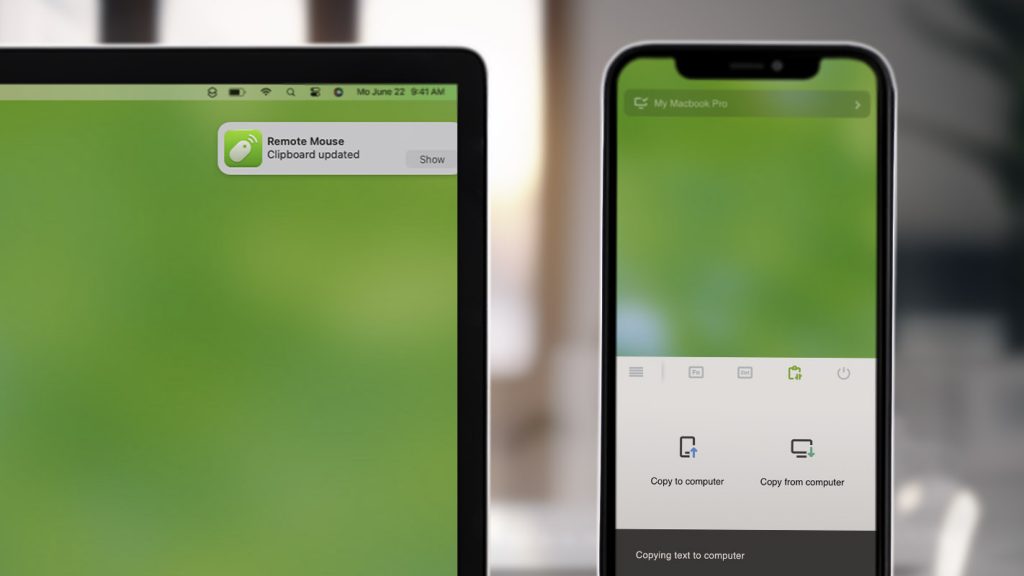
Apple introduced Universal Clipboard in 2016 (as part of iOS 10 and macOS Sierra), making it possible to copy and paste content seamlessly between Apple devices like Mac, iPhone, and iPad.

Now, Remote Mouse brings this experience even further.

With the new Cross-Device Copy & Paste feature (sometimes called Clipboard Sync), you can copy and paste text or images effortlessly between your computer and your phone. And unlike system-level solutions, Remote Mouse breaks platform boundaries:

  • Copy from Android and paste to Mac
  • Copy from Windows PC and paste to iPhone or iPad
  • Copy from phone to computer, or the other way around

No ecosystem lock-in. Just copy and paste.

Continue reading »

Remote Mouse for Steam Deck! Meow 😺

February 2, 2023 in What's New

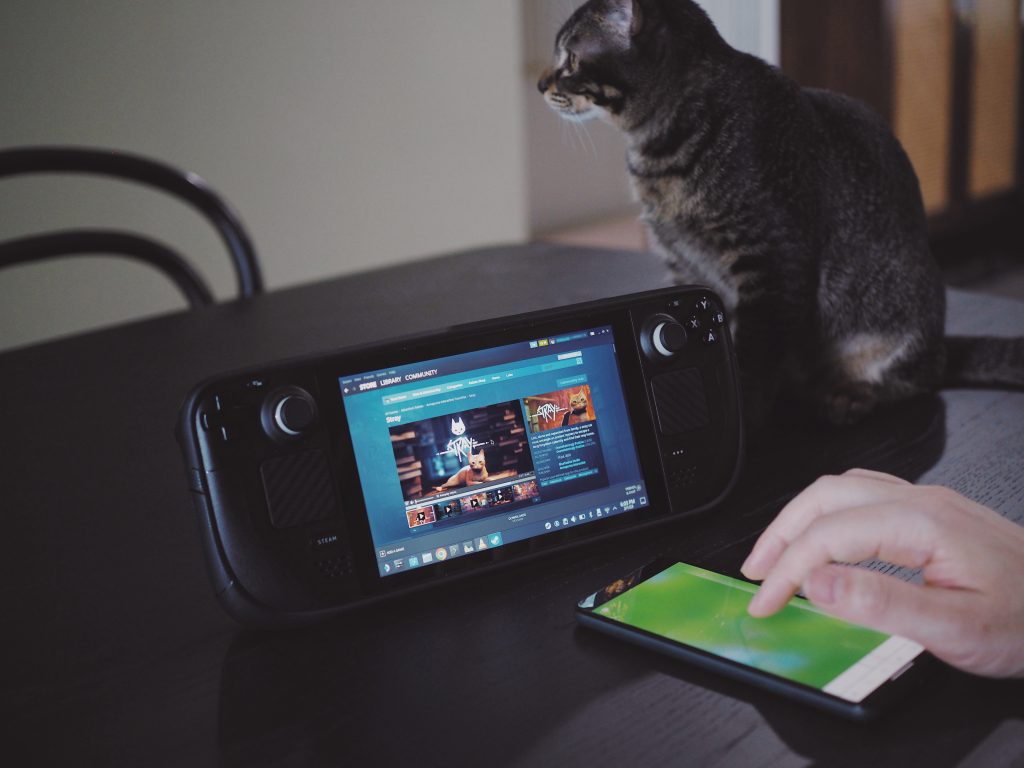
When Steam Deck was released, it quickly stood out as more than just a handheld gaming device. With its vast game library, cross-platform compatibility, and full Linux desktop mode, Steam Deck can also function as a portable computer.

However, using Desktop Mode with the built-in controls is not always ideal. While the joysticks and trackpads are powerful for gaming, they can feel awkward and limiting when navigating desktop interfaces, selecting text, or performing precise mouse actions.

That’s where Remote Mouse comes in.

Continue reading »

New Linux Version Released

December 14, 2022 in What's New

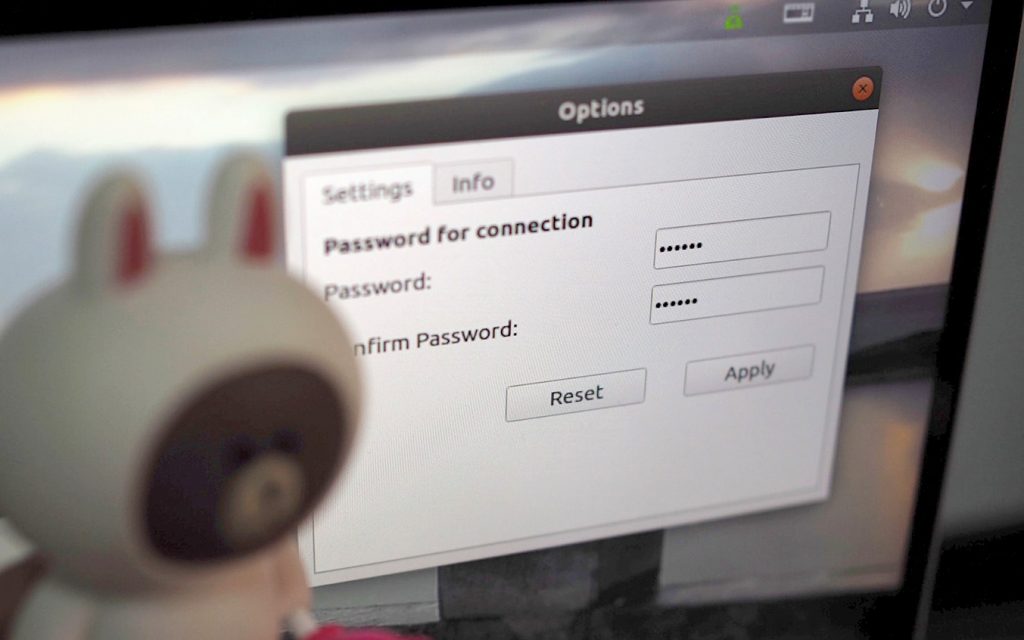
We’ve spent many hours reworking the Linux version of Remote Mouse to bring it to a more stable and usable state.

This release is currently compatible with Ubuntu 18 through 22. While support is limited to these versions for now, we’re continuing to improve compatibility and are working toward supporting more devices, including Steam Deck, in the future.

This new Linux version introduces a set of foundational improvements, including:

  • A refined user interface
  • Improved performance
  • Better compatibility across supported devices
Continue reading »

Wi-Fi or Bluetooth? Choosing the Best Connection for Remote Mouse

July 17, 2021 in What's New

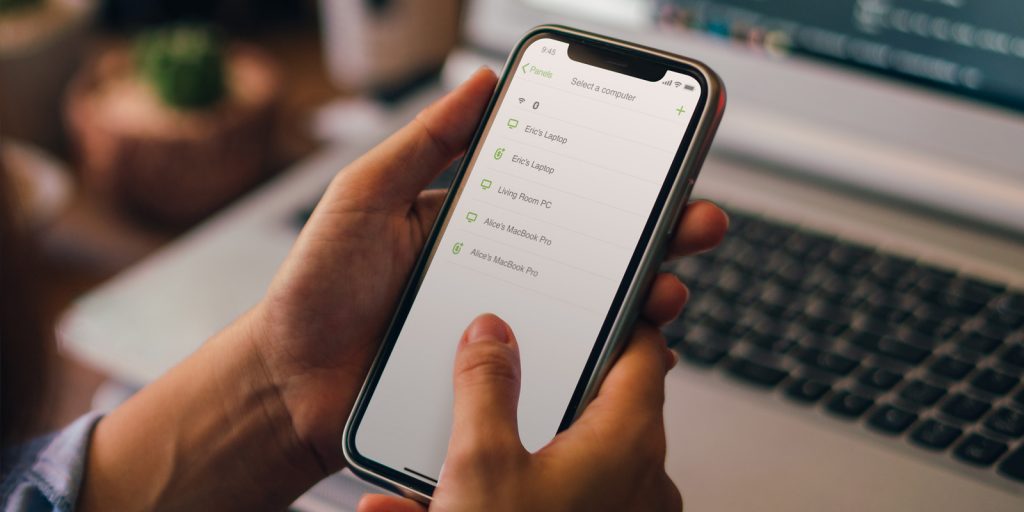
Remote Mouse now supports a new, more resilient way of connecting computers: Bluetooth Connectivity.

This new option is especially useful when Wifi signals are are unstable, cause latency, or are simply unavailable. While Wifi remains our top recommendation connection method due to its stability, hardware compatibility, and wider range, Bluetooth offers a reliable fallback in challenging network conditions.

Continue reading »

Specialty Control Panels for Faster Computer Control

March 5, 2020 in Tips & Tricks

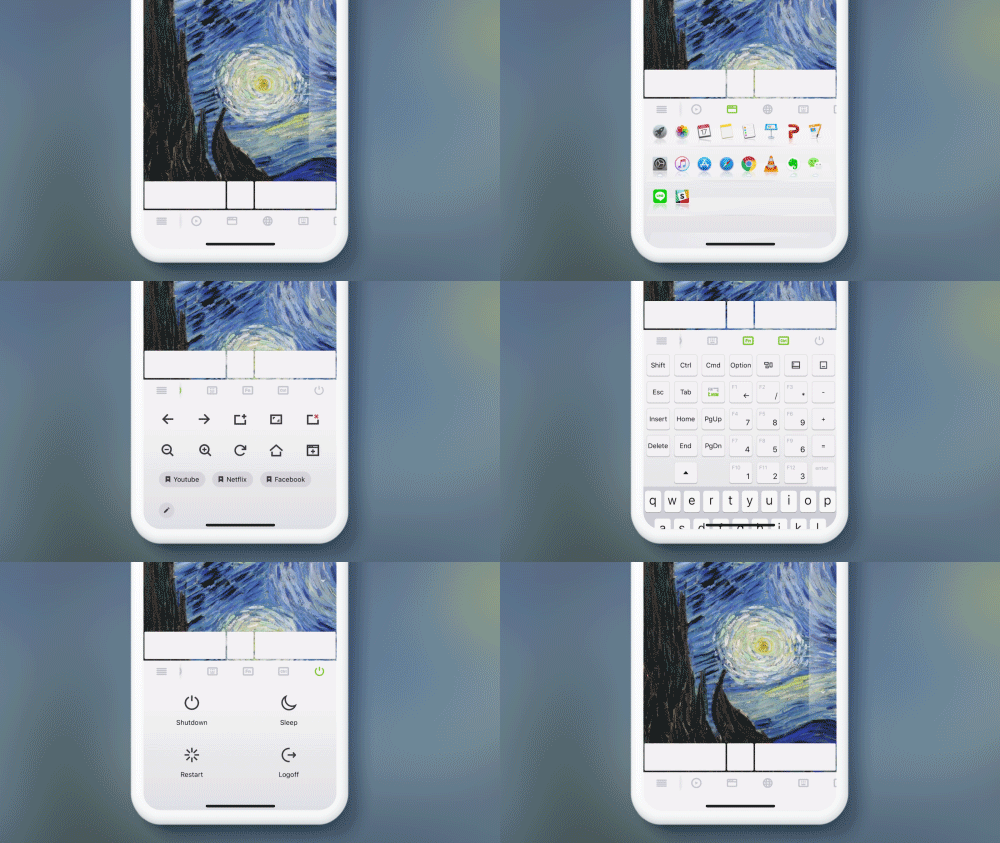
Controlling a computer with a virtual remote can be a hassle when compared to using a physical mouse and keyboard. This is where Remote Mouse’s specialty control panels come in. These panels are designed to give you quick access to common actions that would otherwise require multiple steps, making computer control on small screens faster and more practical.

One-Tap to Switch, Show, or Hide Panels

Tap an icon on the panel control bar to show a panel. Tap it again to hide it.

The panel control bar is fully slidable, allowing each icon to be large enough to match the size of your fingertips. This makes it easier to perform actions with a single tap, such as shutting down your computer. The sliding design also leaves room for additional panels in the future, ensuring the interface can evolve without becoming crowded.

Customize Your Panel Order

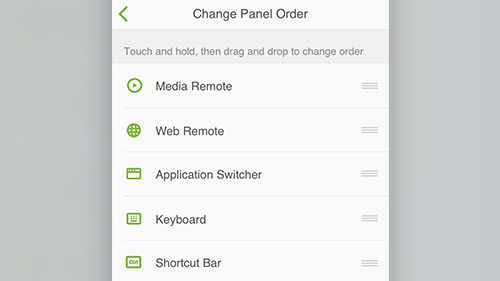
Tap the menu icon on the panel control bar, go to Settings, then select “Change panel order”.

With the latest version of Remote Mouse, you can rearrange the specialty panels and customize your interface to your liking. By placing frequently used panels within easy reach, you can create a more efficient and personalized control layout, tailored to how you use your computer.

How to Use Keyboard Shortcuts in Remote Mouse

February 24, 2020 in Tips & Tricks

In addition to the standard alphabetical keyboard, Remote Mouse provides a Shortcut Bar and a Numeric & Function Keypad. Together, these three input methods cover the full range of shortcuts and key combinations available on a physical keyboard, making it easier to control your computer efficiently from your phone.

The examples below show how Remote Mouse keyboard shortcuts work in real use.

The Shortcut Bar

The Shortcut Bar can be used together with other keyboards and special input panels.
It automatically adapts to the connected computer’s operating system, displaying the appropriate keys for Windows or macOS.

  • The four keys on the left are modifier keys
  • The three keys on the right provide quick controls

Modifier keys can be combined with either the English keyboard or the Numeric & Function Keypad to send shortcut commands.

Using Keyboard Shortcuts

Because of the limited screen size on mobile devices, shortcut key combinations are entered step by step, rather than pressed simultaneously as on a physical keyboard.

Example: Ctrl-Z
Tap Ctrl first, then Z
Continue reading »