

To prevent other Remote Mouse users on the same Wi-Fi network from connecting to your computer without permission, you can set a connection password on the Remote Mouse desktop client.
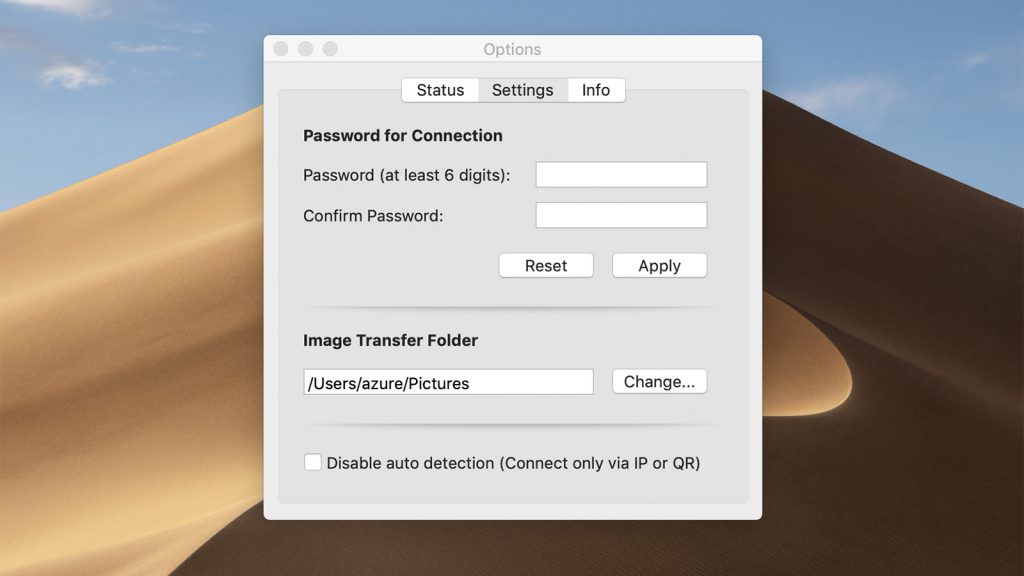
To set a password:
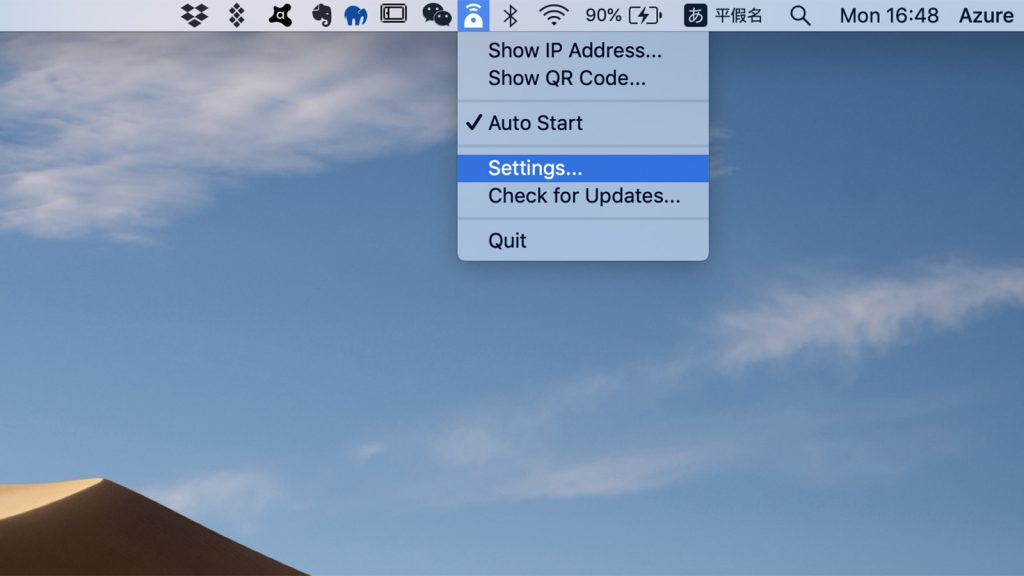
1. Click the Remote Mouse icon in your computer’s system tray (top right corner on macOS, bottom right corner on Windows).
2. Select Settings.
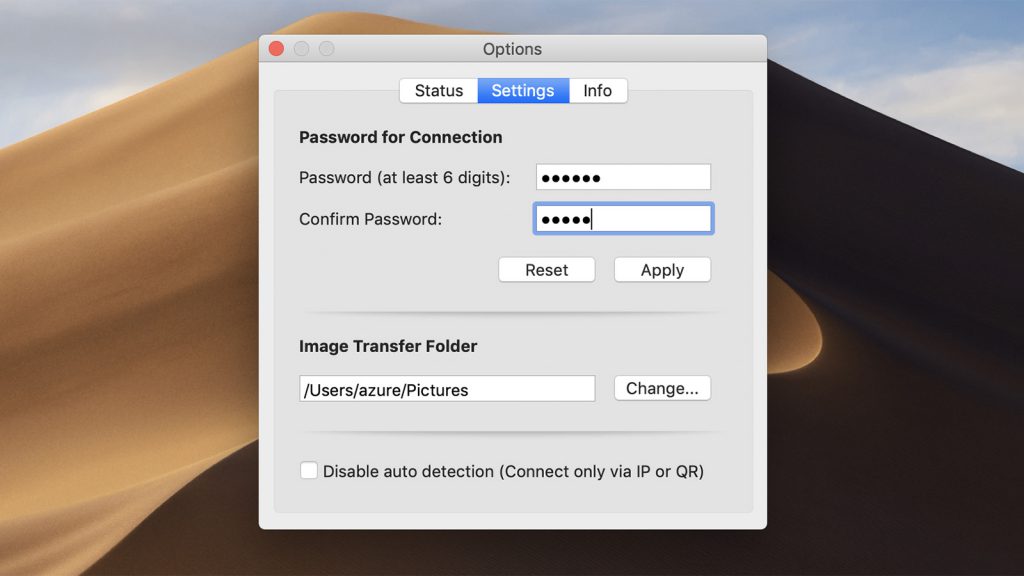
3. Enter your new password in the Connection Password section
4. Click OK to apply the changes.
To remove the password, simply click Reset.
If you don’t want to enter the connection password every time you connect to a computer, you can enable the option to remember the password on your mobile device. This way, you only need to enter the password the first time, and future connections will be made automatically.
On iOS
Enable Remember Password in the Remote Mouse app settings.
On Android
When prompted for the connection password, tick Remember Password in the pop-up window.
This makes reconnecting faster and more convenient, while still keeping your computer protected by a password.
